01What happens when I give Rill a URL and a task?
+
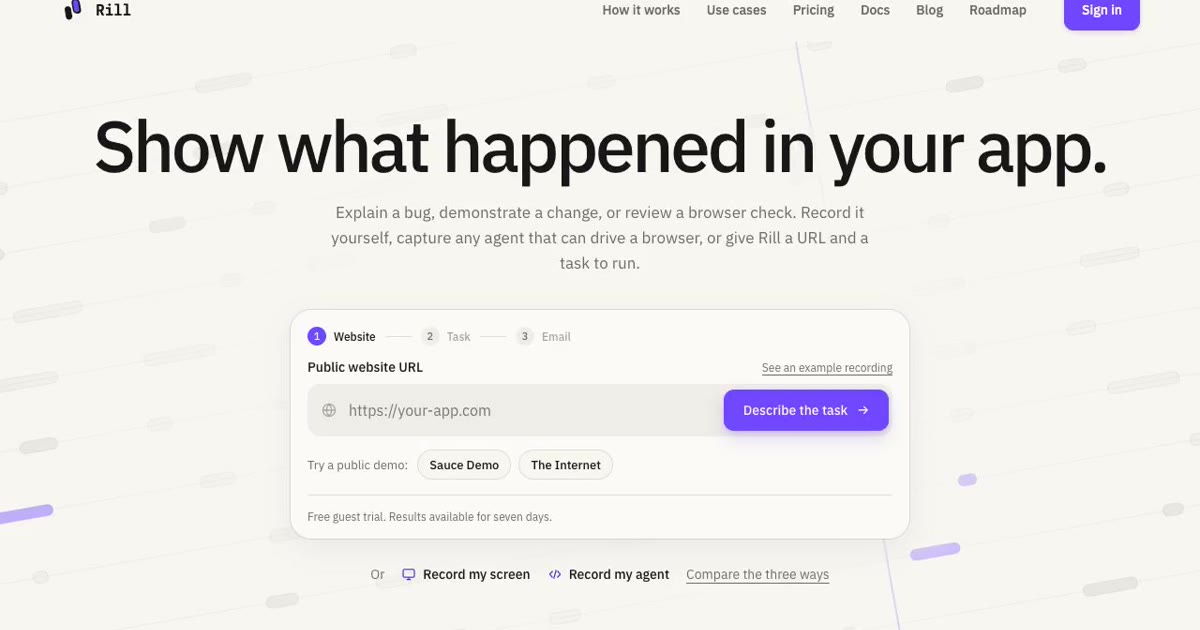
Rill opens the public site in a cloud browser, follows your instructions, and records the run. You can watch the recording and inspect captured diagnostics. A recording shows that run; it does not establish that every part of the app works.
02What do I need to get started?
+
To record your screen, sign in and choose a capture surface in your browser. For a task run by Rill, enter a public URL, task and email for one free guest trial. Sign in to keep your recording or run more tasks. You do not need a local browser tool or your own AI API key for a cloud task. Recording an existing agent requires the Rill CLI and a supported browser connection.
03Can I record the agent I already use?
+
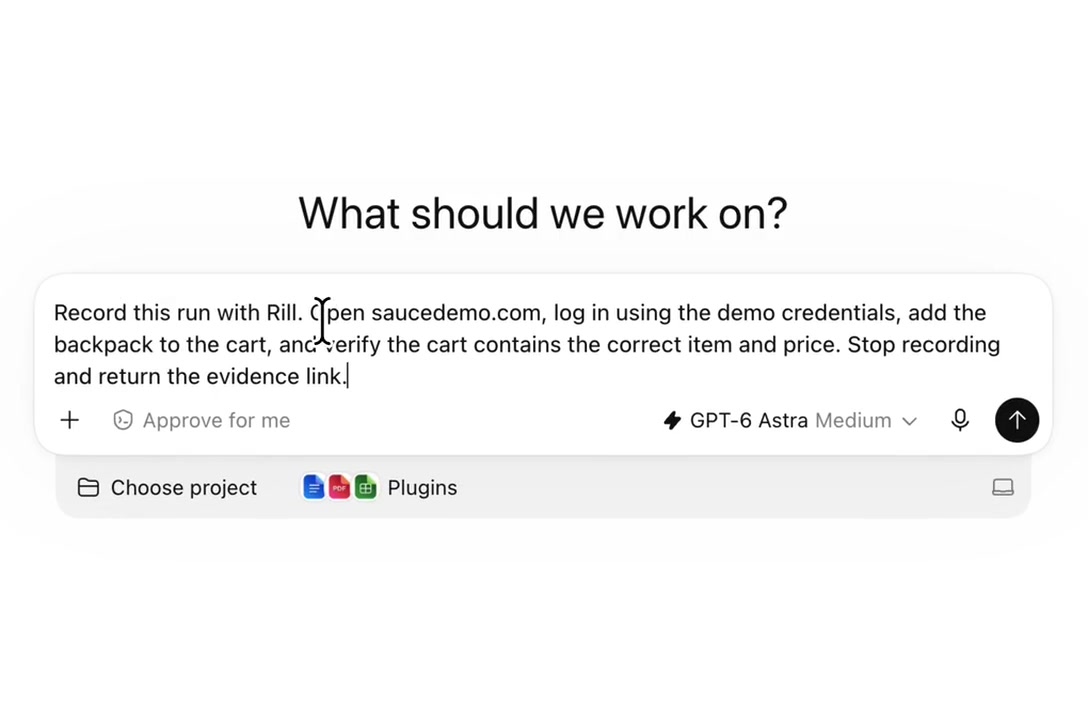
Yes, if it can connect to a supported browser through Rill’s recording workflow. Your agent drives the browser; Rill captures the run. You can also ask an agent to submit a task for Rill’s cloud browser.
04Can I record localhost or a private app?
+
Record your screen, or use the existing-agent route in an environment that can reach the app. Agent recordings upload to Rill. The URL-and-task form on this site is for publicly reachable websites.
05Can I record an app that requires login?
+
Rill’s cloud runs can use a separately configured website account through the CLI. Signing in to Rill does not sign in to your app. Saved-account login does not support CAPTCHA, multi-factor authentication, or SSO. Do not put passwords in the task prompt. Saved-account setup →
06Who can see a recording?
+
Guest cloud results are accessible in your browser and through the secure emailed link for seven days. Guest sharing requires creating a share link. Signed-in cloud and screen recordings start private to your workspace. Anonymous agent recordings upload with an unlisted link. Anyone with an active share link can view the recording and its included diagnostics. Review what was captured before sending a link.
07What’s included in the Free plan?
+
Start with 10 recordings per day, 200 minutes of stored video, and 10 cloud-run credits a month. Pro gives you more room to record and keep your work. Tasks run by Rill use separate cloud-run credits; monthly credits reset on the first of each month (UTC). See Pricing for the details. View pricing →
08Can I record it myself?
+
Yes. Choose Record my screen to capture a tab, window, or screen for up to 10 minutes, subject to your browser’s capture support. You’ll see a preview before the video uploads.