Alternatives / Screen recording
5 Best Loom Alternatives in 2026
Use Loom when a person needs to explain a change. Use Rill when the next person needs to inspect what the browser actually did: the steps taken, the result on screen, and any diagnostic context the capture route includes.
A moved checkout button makes the distinction concrete. One teammate needs to understand why it moved; another needs to see whether clicking it reaches the payment form. The explanation and the browser check serve different needs.
We make Rill. This guide compares five alternatives by the work they help you do, including their limits and situations where keeping Loom makes sense.
Rill vs. Loom for the same change
Suppose you changed the checkout button. A teammate needs to understand why it moved; a reviewer needs to see whether clicking it reaches the payment form. Record the explanation for the first person and the actual browser check for the second.
Keep Loom for narrated updates and its existing discussion or video-prompt workflow. Evaluate Rill when your browser-capable agent is already doing the check and you want to review that execution, or when you want Rill to run a public browser task. If you need a human-recorded bug report with diagnostics, compare Loom's eligible Bug Report mode with the specific capture route you would use elsewhere. Rill's manual screen recorder does not add those diagnostics.
To try it with your existing browser agent, use the recording setup prompt and supply the app URL, steps, safe test data, and expected result. Review the run before sharing it, including what you observed and what it did not check.
When Loom’s plan is the problem
You keep reaching the free limit
Loom Starter has a five-minute screen-recording limit and a 25-video library cap. Archived videos count toward that cap. Compare the limits of the plan you would actually use, including storage and downloads. See Loom’s plans and storage rules.
You need a file, not only a link
Check export access before building a library. Loom’s download permissions depend on the plan and role; Starter creators cannot download their videos. If local files are the priority, start with OBS rather than assuming every hosted recorder includes the same export rights.
When the walkthrough needs work
A small UI change means another recording
For a reusable tutorial, test how you would replace one changed section. Trimming a mistake, rerecording a clip, and updating a screenshot are different jobs. Keep walkthroughs focused on one task, with written steps alongside them.
The viewer needs one moment
Ask someone to find the failed click or the setting they need without your help. Check the timestamps, comments, captions, and navigation they can use. A polished video still costs time if the answer is hard to find.
If recordings fail or uploads stall in your own setup, include recovery in your trial: can you keep the take and retry? This guide does not establish that one recorder is more reliable than another.
Choose by what the viewer needs
These tools serve different jobs—bug context, edited demos, browser-run inspection, and local files—not five versions of Loom. Start with what the recipient needs to understand or inspect.
| Tool | When to consider it | Check before choosing |
|---|---|---|
| Rill | Show a bug or review a browser check, with a link for a teammate or agent | Manual capture is video-only; screen recordings stop at 10 minutes |
| Jam | Collect bug reports and hand technical context to developers or agents | Choose a capture route that includes the technical context you need |
| Tella | Edit a demo or tutorial and share a hosted video | Paid after the trial; check editing and branding on your plan |
| Screen Studio | Make a polished product walkthrough on a Mac | Mac only; hosted links and local exports have different limits |
| OBS Studio | Record locally with custom scenes and audio settings | Configure capture yourself and arrange hosting for a viewing link |
| Loom as the reference | Send narrated updates and discuss them asynchronously | Recording limits and access to Bug Report mode |
These are reasons to evaluate each tool, rather than exclusive categories. Several can serve the same workflow. Compare the route you would actually use.
When staying with Loom makes sense
Loom is a practical starting point for explaining a decision, giving feedback, or walking a teammate through a change. Screen and camera recording, hosted playback, comments, and reactions keep the explanation and discussion together. It also has editing tools, including transcript-based editing on eligible plans. See Loom's current plans.
Loom can capture developer context, too. Its Bug Report mode records device information, console messages, and network metadata through the Chrome extension on Business+AI and Enterprise plans. The documentation says this mode is not available in the desktop recorder. Check the capture method as well as the subscription.
Loom also has a Video Prompt beta: narrated screen recordings become structured action plans for agents. It is limited to the Chrome extension on Business + AI and Enterprise, with a five-minute recording cap. Agent handoff alone is not a reason to leave Loom.
If that already gives your team the context it needs, there may be little reason to switch. Look elsewhere when you have a specific gap: recording an agent's browser work, a different editing workflow, or control over local output files.
1 Rill for app recordings and browser checks
You have a bug to show or a change to review. Rill gives you three ways to capture it: record your screen, record your existing browser agent, or ask Rill to run a task on a public website.
Show the bug yourself. Sign in and choose a tab, window, or screen, depending on your browser's capture support. You can add microphone narration and record for up to 10 minutes. Preview the take, download a local copy if you want one, then upload it for review. Use it for a bug reproduction or a short walkthrough.
Review the run your agent performed. Connect your existing browser-capable agent through Rill's supported Chromium workflow. Your agent performs the steps; Rill captures the browser video and available console, network, and timeline events. The browser runs in the agent's environment, which can make this route useful for localhost or private apps that environment can reach.
Ask Rill for a recorded browser check. Supply a public URL and a bounded task for Rill's cloud browser. This is useful when you want a recorded check of a reachable website without setting up your own browser agent. The guest trial has tighter limits than signed-in runs, including no website credentials or form submissions. See Rill's capture and setup guide.
Choose Rill for: giving the next person an inspectable browser run: what was clicked, what appeared, and the diagnostic context available for that capture route.
Know the boundary: human screen recordings contain video and optional narration, without automatic browser diagnostics. Supported agent and cloud captures include diagnostic context, with network bodies dependent on capture settings. Recordings upload to Rill; running the browser locally does not keep its evidence local. Rill is not a full tutorial editor. A recording documents one run and does not establish test coverage.
Cost: Free and Pro plans have recording and storage allowances. Tasks run by Rill use cloud-run credits separately; recording your own agent's browser does not. Check current Rill plans.
2 Jam for bug reports with technical context
Jam is worth evaluating when a recording needs to become a bug report that developers can investigate. Its Chrome extension captures screen recordings or screenshots with available console logs, network requests, user events, and device information. It also connects with tools including Jira, Linear, and Slack. See Jam's product overview.
For agent workflows and imported test artifacts, check Jam’s current CLI documentation against the setup you use. Rill’s existing-video upload is video-only; it does not reconstruct browser diagnostics or import a Playwright trace.
Choose Jam for: collecting bug context and bringing it into an established issue or agent workflow.
Know the boundary: inspect what your chosen capture method actually includes. A customer recording link, browser extension recording, and imported test artifact involve different setup. If your primary need is a carefully edited launch video, compare an editing-focused option as well.
Cost: Jam offers Free, Team, and Enterprise plans. Check recording, creator, and access-control limits for the route your team needs.
3 Tella for edited demos and tutorials
Tella is useful when you want to shape a recording before sending it. It records screen and camera separately, so you can change layouts afterward. Its editing tools include a timeline, transcript editing, zooms, and captions. Tella offers Mac and Windows apps as well as browser recording. See Tella's recording and editing tools and its Windows app.
Choose it when a mistake should become an edit rather than another take. For tutorials that change often, try Tella’s clip and transcript editing on a real update before moving your library. You can publish a hosted video, embed it, or export an MP4 through its sharing workflow.
Choose Tella for: a reusable video that benefits from editing and a hosted viewing page.
Know the boundary: compare the whole publishing workflow, including branding and viewer experience. Tella reserves features such as removing its branding and using a custom domain for Premium. Editing controls alone do not tell you which plan fits.
Cost: paid plans with a trial. Review Tella's current plan comparison.
4 Screen Studio for polished Mac walkthroughs
Screen Studio focuses on making screen recordings presentable with automatic zooms, cursor smoothing, adjustable layouts, and editing. It supports screen, webcam, microphone, and system-audio capture, along with transcript editing and captions. See Screen Studio's features and requirements.
Try it when small controls are hard to follow in an ordinary screen capture. The zooms and framing help direct attention. For a bug report or test recording, retain the original footage so the edited presentation does not obscure what happened.
Choose Screen Studio for: edited product walkthroughs made on a Mac.
Know the boundary: Screen Studio requires macOS. It supports both local exports and hosted share links, so it should not be evaluated as a local-only recorder. Local MP4 exports can reach 4K, while hosted share links have separate limits, including a 30-minute duration cap and 1080p output.
Cost: paid subscription options. Check the current plans and purchase terms rather than relying on an older price comparison.
5 OBS Studio for free local recording and capture control
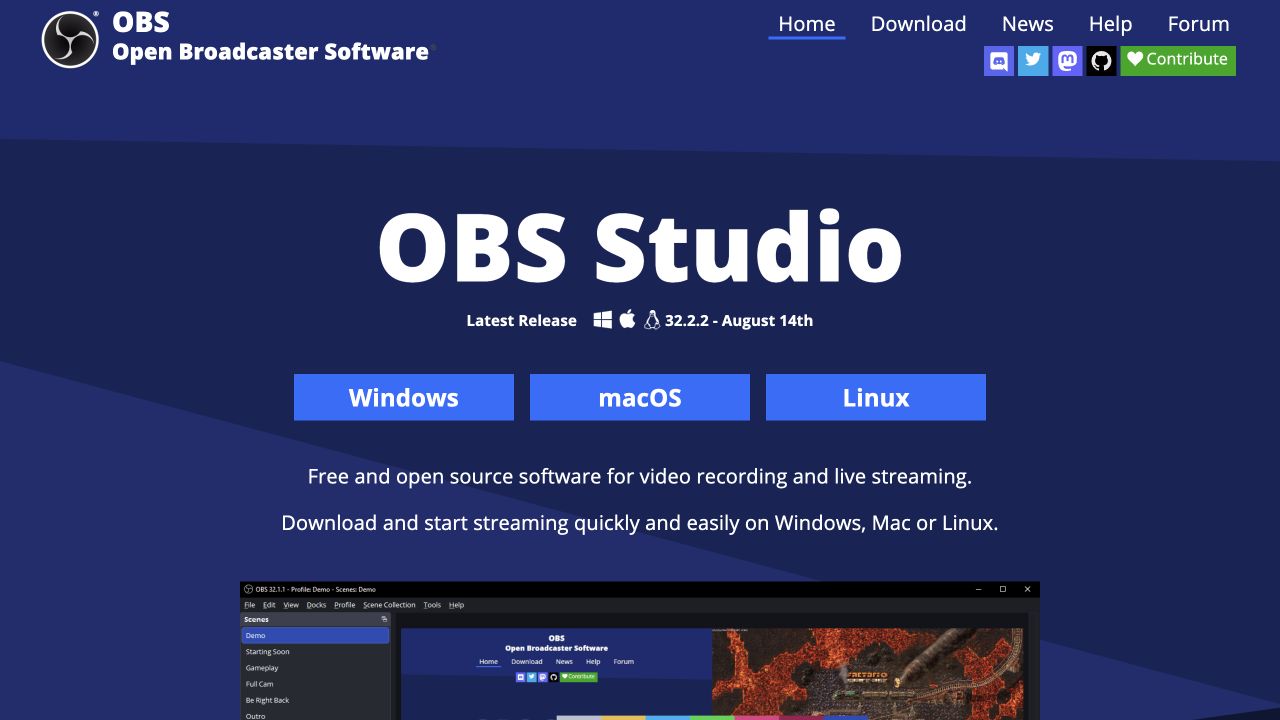
OBS Studio is free, open-source software for Windows, macOS, and Linux. You can combine windows, displays, cameras, browser sources, and audio into scenes, then record or stream the result. See OBS Studio's features.
Start here if you mainly want a recording file without another software subscription. You can configure a particular screen layout, several audio sources, or capture for a separate editing process. Its recording guide explains output settings and the folder where recordings are saved.
Choose OBS for: flexible capture and control over local recording files without a software subscription.
Know the boundary: plan how you will edit, host, and share the output. A local recording file adds steps when your team expects an immediately watchable link. Include that work in the comparison, along with the initial scene and audio setup.
Cost: free software. Storage, editing, or hosting services you choose may have their own costs.
Compare the tools with one real recording
Pick the task you repeat most often. A two-minute explanation, a bug reproduction, and an agent's browser check will expose different strengths. Use the same app, safe test data, and intended audience for each candidate.
Ask the recipient to review the result without you sitting beside them:
- Can they understand what changed or where the problem occurred?
- Can they find the important moment without replaying everything?
- If they need diagnostics, were the relevant events captured and can they inspect them?
- Does the video need editing, captions, or a different layout before it is useful?
- Can the intended viewer open it, and are the sharing permissions appropriate?
- What happens to the recording if you stop paying, reach a storage limit, or need to export it?
Change one screen in your example and try updating the walkthrough. Then export it and open the share link as the intended recipient. Those steps expose maintenance and access costs that a feature table misses.
For instructions people must follow repeatedly, a video may need a companion guide. Tango offers captured step-by-step documentation; Arcade offers interactive demos. These are adjacent formats to evaluate, outside the five recorder alternatives above.
Also compare the recurring effort: capture setup, editing, uploads, and keeping links available. A free recorder may be the right choice, but its price does not account for the work of distributing the file. A paid tool is useful only if its workflow solves a problem you actually have.
Common questions
Which Loom alternative should I use for bug reports?
Start by comparing Jam and the Rill route that fits your task. Jam is built around collecting technical context for issues. Rill covers human recordings, compatible agent capture, and tasks run in its cloud browser. If you already use Loom Business+AI or Enterprise, evaluate its Chrome-extension Bug Report mode before adding another tool.
Which alternative is free?
OBS Studio is free software for local recording. Rill and Jam have free plans with limits. Tella offers a trial rather than a permanent free plan. Check hosting, storage, and export access as well as the recording price.
Can I update a walkthrough without recording it all again?
Keep one recording per task and written steps beside it. For an edited video, try replacing a clip in an editor such as Tella. For a repeatable process, evaluate a step-by-step guide. Rill does not currently offer section replacement in a tutorial.
Can Rill replace every use of Loom?
Try Rill for recording app behavior and browser work. If you rely on Loom for broad team video communication, editing, or an existing video library, evaluate those needs separately. You can keep Loom for narrated updates and use another tool for a specific recording workflow.
Do I need to move my existing recordings?
You can evaluate an alternative on new work while keeping your archive where it is. Before making a wider change, check export options, existing links, retention, and access. This guide does not assume a direct Loom-to-Rill migration tool.
Who can view a Rill recording?
Anyone with an active Rill share link can view the recording and included diagnostics. Signed-in screen and cloud recordings start with workspace access; anonymous agent recordings upload with an unlisted link. Review the video and captured data before sharing. A private ticket or pull request does not make the recording link private. See Rill's capture and access details.
Make one recording your teammate can use
Record the smallest task that would help a teammate act: reproduce the failed click, show the changed control, or check the checkout flow. Record your screen, record your existing agent, or give Rill a public URL and a task. Review what was captured, then decide whether it gives the next person the context they need.
For a closer look at tools for reviewing agent browser work, read our Jam alternatives guide.
Loom, Jam, Tella, Screen Studio, and OBS Studio are trademarks of their respective owners. Rill is independent and is not affiliated with or endorsed by these products.